

Your first Pin: what to check before you publish
You've got the photo and a rough idea for the words. Then you open the Pin editor. What goes in the title? Which link should you use? And why does the image suddenly look different on your phone?
Let's put one Pin together, step by step. We'll use a small studio that makes canvas bags as our example. One picture doesn't have to tell the entire history of sewing.
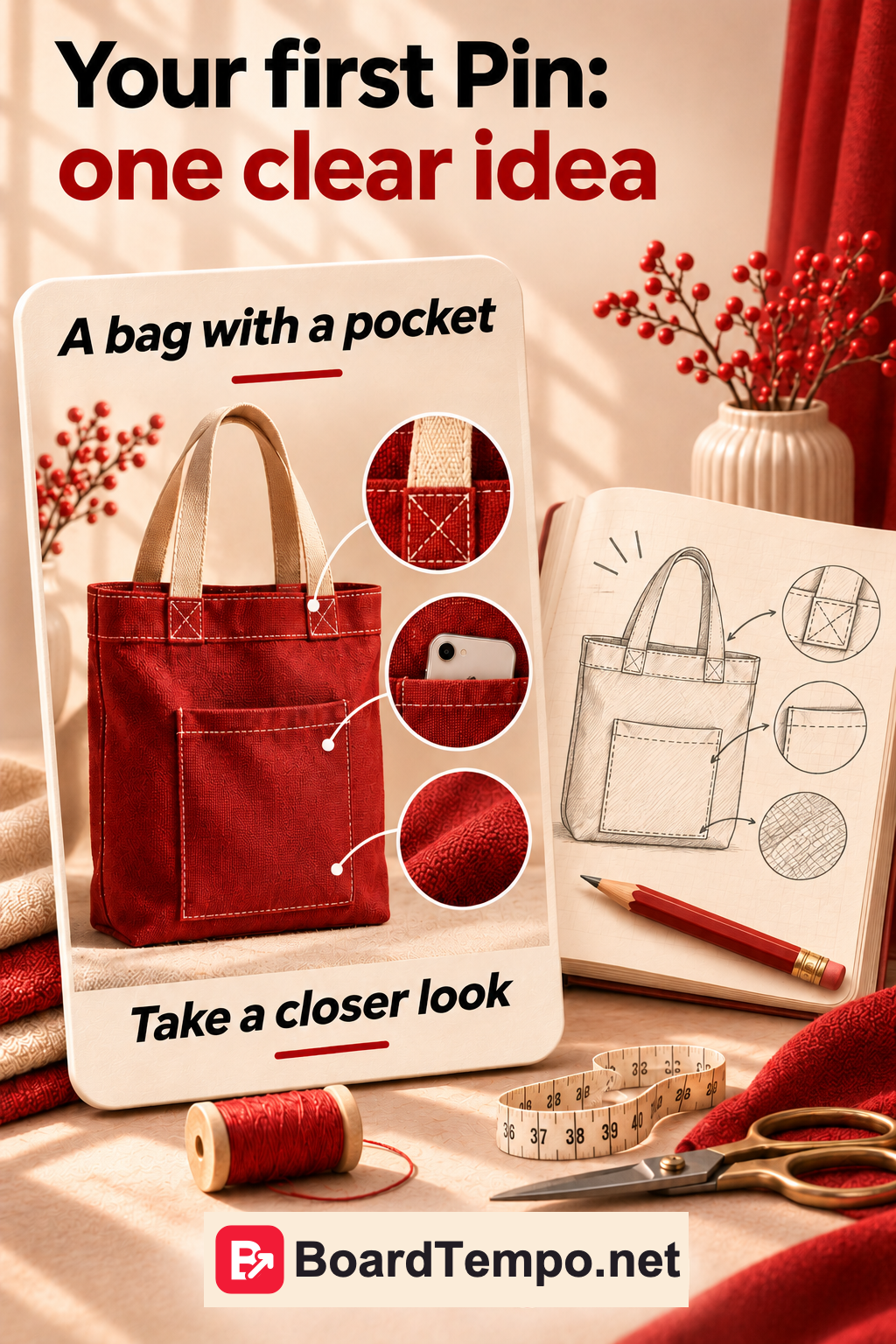
Give someone one clear reason to open the Pin
“Look at our bags” is rather vague. “An outside pocket so your phone doesn't disappear into the bottom of your bag” gives them something specific to notice.
Show that pocket in the photo. If it's hidden on the other side, the words can't do much about it.
Use one of your own photos, or an image you have permission to use. Putting your logo on someone else's photograph doesn't make it yours.
Get the linked page ready
Open it yourself, preferably on your phone. Is it the same bag? Can you see the pocket, the measurements and how to order? Is anything covering the screen? Good. That's a useful place to send a visitor.
If the link opens a general catalogue with a hundred products, they'll have to hunt for the bag all over again. They may lose interest before they find it.
Not every Pin needs a link. But if you want readers to visit your website, add the exact page that follows up on the Pin. Don't promise a sewing pattern and send them to a finished bag for sale.
The title and description have different jobs
The title names the subject: “Canvas tote bag with an outside pocket.” The description adds details: “See the pocket size, handle length and how the bag looks on your shoulder. Follow the link for photos and ordering information.”
That's an example, not a description to paste onto every product. If you don't have an on-the-shoulder photo, leave that bit out. A good description explains what's there; it doesn't invent it.
Keep the words on the image shorter. “Your phone, within reach” is easy to read at a glance. Three paragraphs about the merits of pockets belong elsewhere.
Put the Pin together in Pinterest
On the website, choose the option to create a Pin. In a business account, you'll find it in the tools menu. Upload one image, add the title, description and link, then choose a relevant board. Check the preview and publish when everything is ready.
In the app, start with the create button and choose Pin. Labels and positions can vary. Uploading several images doesn't automatically turn them into one swipeable carousel: on the website, Pinterest creates separate Pins from multiple images.
If you used AI to create or edit the image and the editor offers a disclosure option, use it. An illustration and a photograph of a real product are not interchangeable. Show what you're selling honestly.
Five checks before you publish
1. View the image at phone size. Can you still read the words?
2. Compare the picture and title. Are they about the same thing?
3. Open the link. Does the page deliver what the Pin promises?
4. Check the board. Has the bag ended up among dinner recipes?
5. Read the description aloud. Does it explain something, rather than recite keywords?
After publishing, open the finished Pin and test the link again. It's less exciting than choosing a font, but it catches a wrong address straight away.
What next?
Don't judge the whole project by its first evening. Start by making sure the Pin works as intended. Then look for new ideas in the questions customers ask about your work: what fits inside, what goes with it, useful details, ways to use it.
One article, several Pins: give readers different reasons to visit
Your Pin looks good. Where does it lead?
Fixing a Pin without deleting it unnecessarily
Source
Let’s talk about it
What could help your project? Share your experience or ask a question.
The discussion will appear here after this article is posted in our Telegram channel and comments are enabled. You can visit the channel meanwhile. Comments are public; you are not automatically subscribed.
Telegram loads only when you click. Telegram may ask you to log in to comment. If the discussion is not available, use the channel link above.