

Your Pinterest business account: start with the right profile
You’ve decided to use Pinterest for your business. You open the settings and pause. Should you create a new account, or convert the one full of recipes, garden ideas and that haircut you haven’t quite dared to try?
Either can work. Before clicking anything, choose the option that will make sense for you later.
What a business account gives you
A Pinterest business account is free. It gives you access to Pin analytics and business tools. Having one doesn’t mean you have to buy ads.
At the beginning, analytics are especially useful: they help you see which posts attract attention and whether visitors follow your links. We’ll get to the numbers once you have Pins to look at. Right now, the job is simpler: give your business a clear, useful profile.
A new account or your existing one?
I’d start a separate account if you use your current Pinterest for personal ideas and your business is about something else. It’s easier than mixing plans for your own kitchen with work you want customers to see.
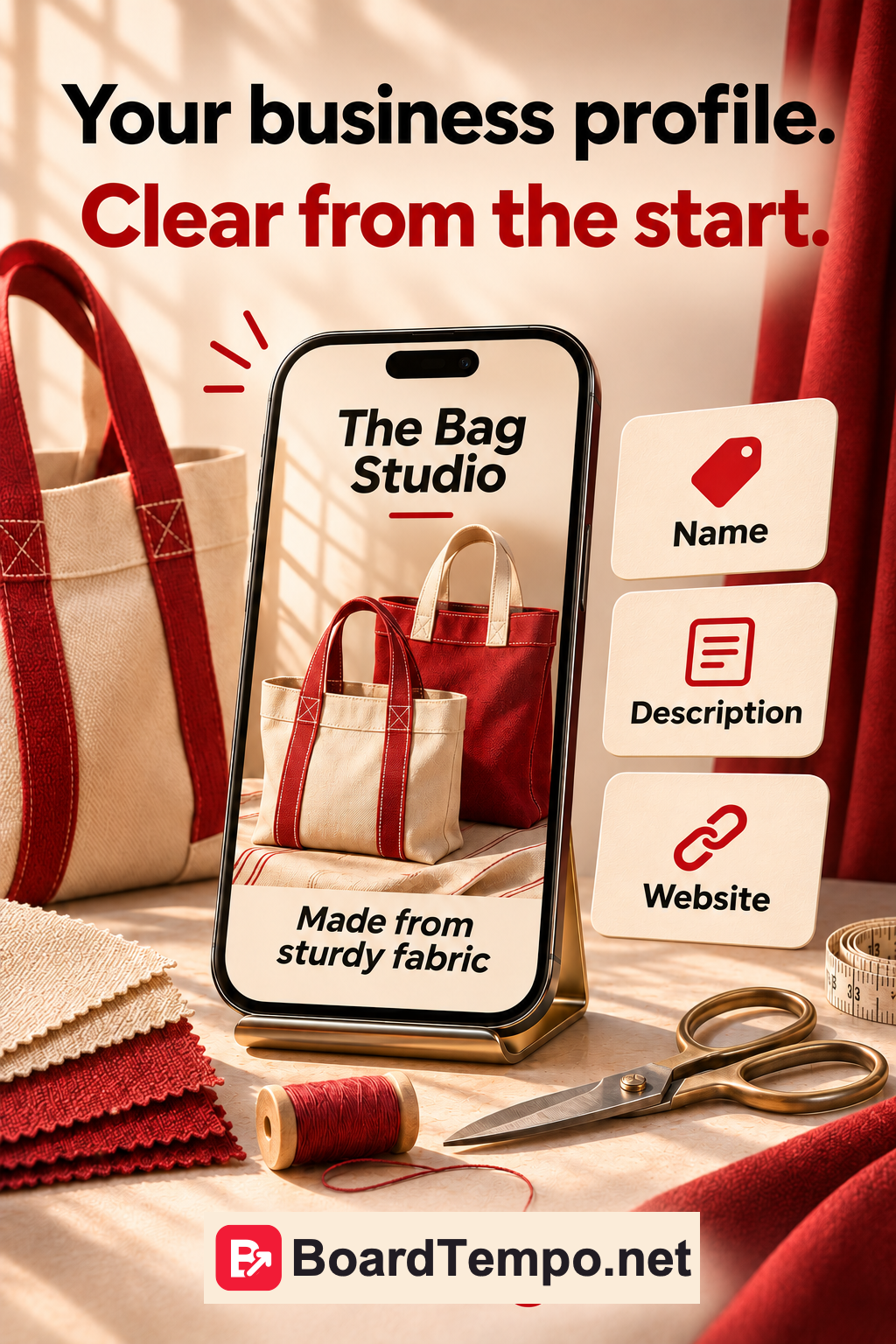
Say you’re opening a small bag-making studio. Recipes and garden paths can stay in your personal account. The studio gets its own profile for finished bags, details, fabrics and useful advice on choosing a bag.
If your existing account is already about your work, consider converting it. Pinterest keeps your Pins and followers. Business profiles are public, though, so a private personal account has to become public before you can convert it.
Don’t decide purely because you’d hate to start from scratch. Look at what’s already there. Would someone visiting for the first time understand what you do?
Get a few things ready
Put your business name, a short description and your website address, if you have one, in a note. Have a logo or profile photo ready.
Check your email, too. Can you actually open that inbox? Better to find out now than when you need to recover your account.
Your description doesn’t have to be perfect on the first try. For the bag studio, this would be a useful starting point:
“We make everyday bags from sturdy fabric. Browse our designs, details and styling ideas. Visit our website for sizes, materials and how to order.”
That tells us what the studio makes, what we can look at and where to find the details. “Creating style, inspiring lives, making dreams come true” sounds impressive, but the bags seem to have gone missing.
Create an account or convert one
For a new business account, open Pinterest on a computer, log out of your current account and choose Sign up, then Create a business account. Use an email address that isn’t already attached to another Pinterest account, and follow the prompts about you and your business.
To convert an existing account, open Settings, find Account management and choose the option to convert to a business account. Before confirming, check that you’re in the right profile.
Pinterest’s Business Terms of Service and Privacy Policy apply when you create or convert an account. Read them before you confirm.
Menus can change. The official setup guide is linked below, so you can check the current steps if a button has moved.
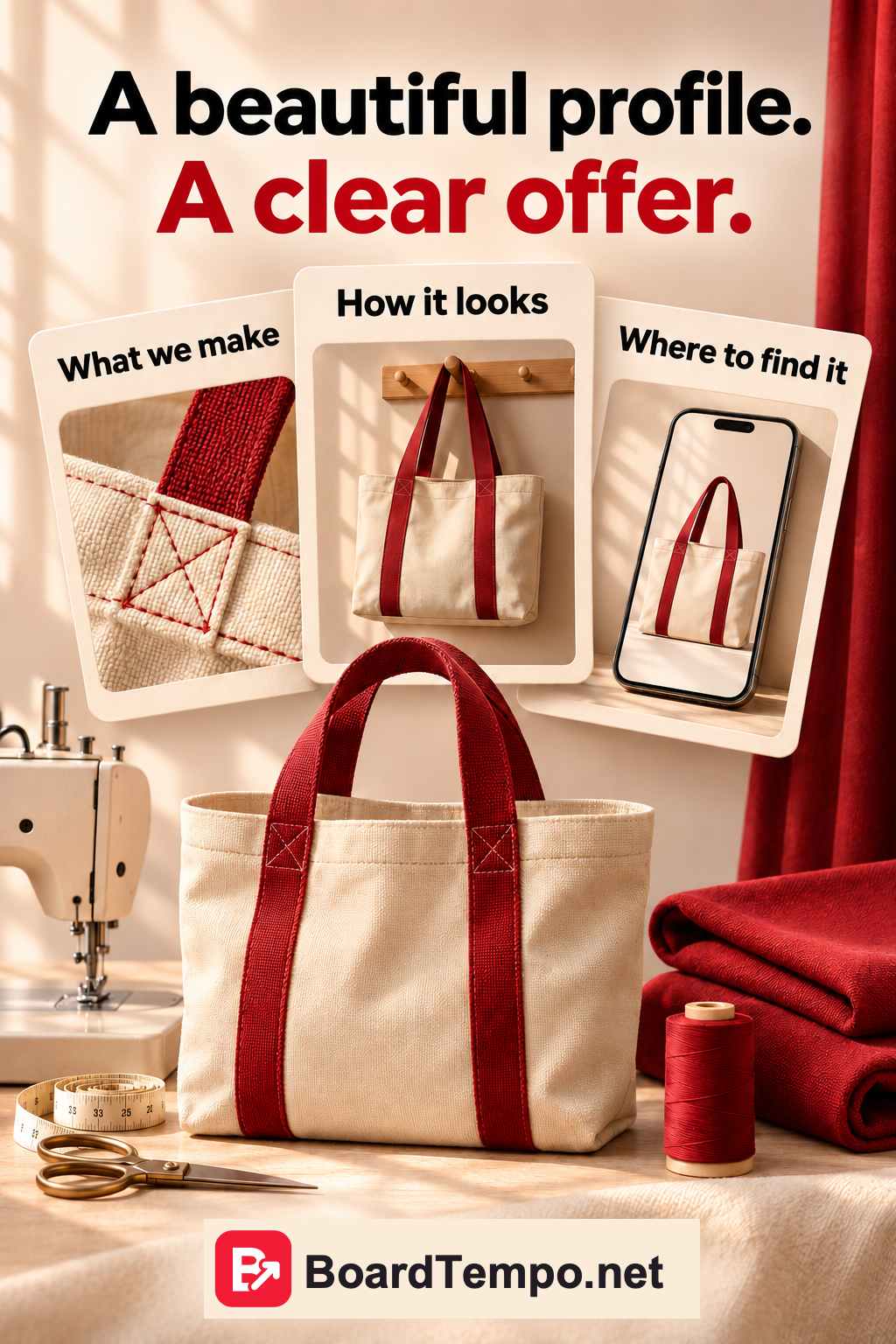
Check the whole profile, not just the photo
Open your profile as if you’ve never heard of the business before.
Do the name and description make it clear what’s on offer? Can you tell that the Pinterest profile and website belong to the same business? Does the link open?
For the bag studio, check what’s waiting on the linked page, too. If the link says “Order”, the page should explain how to order and how to get in touch. If visitors can only browse the designs for now, say that instead.
Don’t squeeze every possible search term into the description. “Bags, sewing, accessories, fashion, style, trends, beauty” takes up space without telling us much. Say what kind of bags you make and what you share on your profile.
Adding a website link isn’t the same as claiming your website
Adding your website address gives visitors a route to your site.
Claiming the site is a separate step that verifies it belongs to you. It helps connect images saved from your site with your Pinterest profile and gives you information about how that content is shared.
If you own the site and have the necessary access, use an appropriate method from Pinterest’s official guide, such as an HTML tag or a DNS TXT record with your domain provider. If a developer looks after the site, send them the guide. There’s no need to guess which domain settings to change.
No website yet? Don’t put in someone else’s address or invent one for later. Set up your profile first, then add the link when the page is ready.
Before your first Pin
See if you can answer these without reaching for your notes:
What do I offer?
Who is it useful for?
What can visitors find on my profile?
Where does the link lead, and what can they do there?
If all four answers are short and clear, you’re ready for the next step. If not, this is a good time to fix a couple of lines. It’s easier before you start bringing visitors in.
Next, read “Your Pin looks great. But where does it lead?” We’ll choose a page for a particular Pin, rather than sending everyone to the homepage.
Keep reading
Your Pin looks great. But where does it lead?
Are your Pins actually working?
Sources
Pinterest Help: Get a business account
Let’s talk about it
What could help your project? Share your experience or ask a question.
The discussion will appear here after this article is posted in our Telegram channel and comments are enabled. You can visit the channel meanwhile. Comments are public; you are not automatically subscribed.
Telegram loads only when you click. Telegram may ask you to log in to comment. If the discussion is not available, use the channel link above.