

Pinterest board covers: make them clear, not just pretty
You open a profile and find beautifully coordinated covers: matching borders, matching flowers, matching “Inspiration” labels. Lovely. Working out where the curtains are and where the bags are takes a little more effort.
A good cover helps someone choose a board. Pure decoration is fine too, but it doesn't have to be the first job when you're setting up an account.
Two images that are easy to confuse
Pinterest distinguishes between a board cover and the image at the top of a board. The cover appears among the boards on your profile. The top image appears inside the open board. They occupy different spaces, so the same design may look different in each.
Decide which one you're changing before designing it. Otherwise, you can spend ages adjusting a cover only to discover you've been working on a different image.
Show the topic, not just a nice background
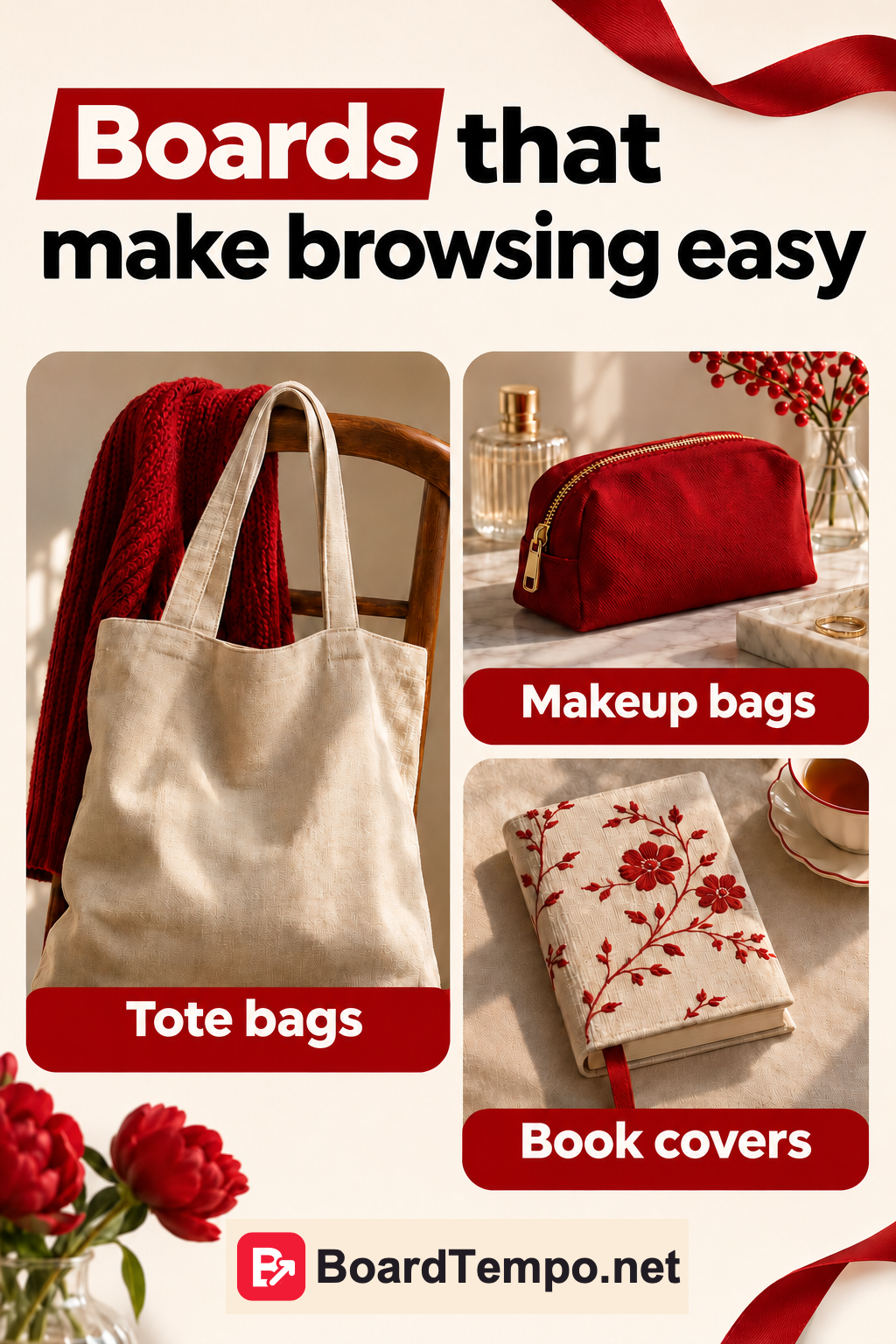
Suppose a studio makes tote bags, makeup bags and fabric book covers. Each collection has a subject. Show a bag on the bag board and a book in its cover on the book-cover board. The same decorative sprig on every section won't tell visitors much.
The name should help too. “Fabric tote bags” is clearer than “Favourite little things.” Save the more conversational description for the space where you can explain what you're collecting.
Similar lighting, a shared palette and a small brand mark are enough to create a consistent look. You don't need a heavy banner and a long paragraph over every photo.
How to change a cover
On a computer, open your profile, go to your boards and choose one. Use the menu beside its name to edit the board, then find the cover setting. Make your choice and save.
In the app, the position of these options depends on the device. Pinterest's help has separate instructions for editing the board and its top image. If you can't find the cover setting, try the website and check the current guide rather than tapping every option in turn.
For the top image, Pinterest says the board must contain at least one saved Pin. Its guide doesn't specify one universal official cover size. Check the crop in the interface instead of treating measurements from someone else's template as a platform rule.
A check that doesn't need a designer
Return to your profile and imagine you're browsing a shop for the first time. Can you tell what's in each section without opening it?
Now open the board on your phone. Has the main object been cropped out? Can you still read any small labels? If you have to zoom in, remove the extras and give the subject more room.
Finally, look inside. Does a cover promising shopping bags open onto a mixture of manicures, recipes and embroidery? A new cover won't fix that. Sort out the collection first.
Know when to stop
If the topics are clear, the names are accurate and the boards contain relevant Pins, the covers are doing their job. You don't need to postpone useful posts while choosing between two nearly identical reds.
Start with one board you actually want visitors to explore. Get it working well, then apply the approach to the others.
Keep reading
Pinterest boards: give your ideas a home
Pin templates: faster doesn't have to mean identical
Source
Let’s talk about it
What could help your project? Share your experience or ask a question.
The discussion will appear here after this article is posted in our Telegram channel and comments are enabled. You can visit the channel meanwhile. Comments are public; you are not automatically subscribed.
Telegram loads only when you click. Telegram may ask you to log in to comment. If the discussion is not available, use the channel link above.