

Pinterest Tag: do you need it, and how do you know it works?
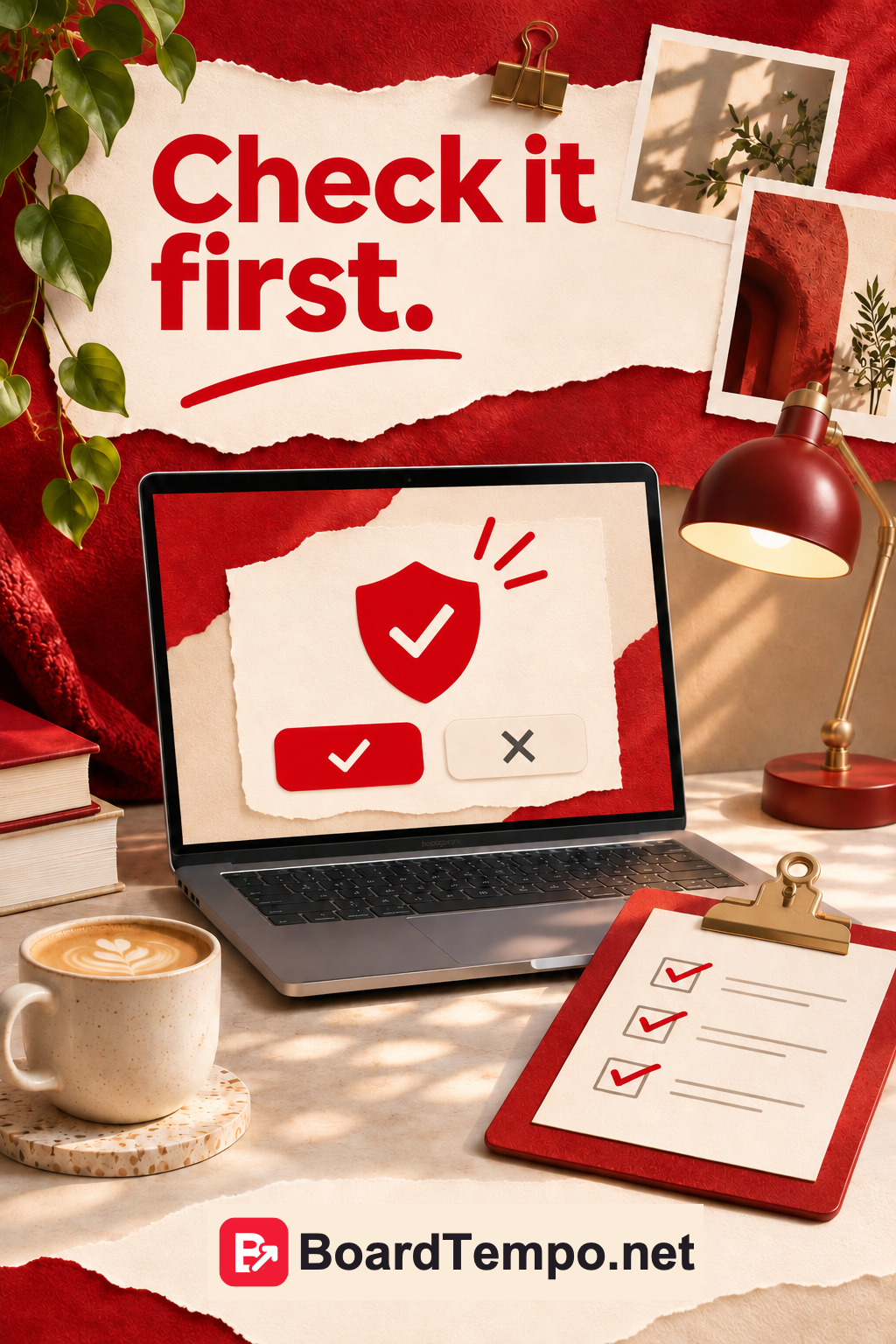
Your website already has articles, a catalogue and an enquiry form. Now someone suggests adding the Pinterest Tag. “Might as well. It could be useful.” Useful for what, exactly?
Before adding another tool, decide which question it should answer. Otherwise, you gain some code without gaining much clarity.
What does the Tag do?
The Pinterest Tag is website code that sends Pinterest information about visits and configured actions. Its uses include measuring advertising results, tracking conversions and building audiences.
For example, a shop may want to understand actions taken after Pinterest advertising exposure. Ad clicks alone cannot answer that; the website events must be configured correctly.
The Tag does not increase organic reach or make a sales page more convincing. If you are testing your first unpaid Pins, work out which information is missing. Pinterest Analytics and website analytics may be enough for that stage.
Can your project use it?
Pinterest's installation guidance calls for a business account and an ad account. Check advertising availability for your market and account; having a website does not establish eligibility.
If the required feature is unavailable, do not invent a different country in your account details. Check the available tools. Organic publishing and advertising are separate jobs.
Agree on what counts as an event
Imagine a made-to-measure furniture business. A visitor presses “Send,” but the form shows an error. Has an enquiry arrived? No. The button press must not count as a successful lead.
Before installation, write down the action, the moment it is genuinely completed and how to verify it. For an enquiry, that means successful submission, not merely clicking. For a purchase, use the agreed confirmed-order criteria, not a visit to the basket.
Pinterest provides standard events including Lead, Signup and Checkout. Match them to real actions, not whichever label looks best in a report.
Consent controls must actually control the Tag
Pinterest specifically addresses obtaining lawful consent before sending events in the EU. Establish the requirements applying to your website and configure transmission accordingly.
Ask for four states to be tested: no choice yet, acceptance, refusal and later withdrawal. If refusal changes nothing about transmission where consent is required, the job is unfinished.
Do not send enquiry text, phone numbers or arbitrary form contents in events. Enhanced matching using visitor information is a separate configuration, not a compulsory extra to tick. Its data and lawful basis need separate consideration.
Ask for a demonstration, not just a green tick
Pinterest offers Test events and the Tag Helper extension. Ask to see a short test sequence.
A valid test enquiry should produce the intended event. An incomplete form should not create a successful-lead event. Refreshing the confirmation page should not duplicate the enquiry. For a test order, the value and currency should match the test data.
Repeat the consent checks too. Use an agreed test-payment mode rather than making an accidental real purchase.
Pinterest says it may take up to 24 hours for an installed Tag to appear in Ads Manager. Waiting for that status does not replace testing the events.
What does a finished installation include?
You should have an event list, test results and a named owner for checking the setup after website changes. A new form or checkout means another check.
Remember that collecting an event does not automatically prove a particular ad caused the order. Attribution settings determine how the system connects an action with advertising exposure. The Tag supports measurement; you still need to understand the report.
If you are only checking links for now
Start with the journey from the Pin to its destination: https://boardtempo.net/en/guides/where-does-your-pin-lead/
Sources
Installation and prerequisites: https://help.pinterest.com/en/business/article/install-the-pinterest-tag
Base code and consent: https://help.pinterest.com/en/business/article/install-the-base-code
Event codes: https://help.pinterest.com/en/business/article/add-event-codes
Verification: https://help.pinterest.com/en/business/article/verify-the-pinterest-tag
Let’s talk about it
What could help your project? Share your experience or ask a question.
The discussion will appear here after this article is posted in our Telegram channel and comments are enabled. You can visit the channel meanwhile. Comments are public; you are not automatically subscribed.
Telegram loads only when you click. Telegram may ask you to log in to comment. If the discussion is not available, use the channel link above.