

Pinterest carousels: why several images don't always make a swipeable post
You prepare five slides, upload them to Pinterest and get five separate Pins instead of one carousel. Annoying, especially if the first says “Swipe for more.” But you may not have done anything wrong. Pinterest handles multiple images in several different ways.
First, choose the format
A carousel lets you swipe through cards. A slideshow video may look similar, but its frames advance with time, not when the viewer swipes. Several separate Pins are a third option. They aren't guaranteed to appear together or in the right order.
Choose how you'll publish before writing “See the next slide.”
What happens with a normal upload?
Pinterest's current desktop instructions say that selecting multiple images creates a separate Pin for each one. In the app, you can choose separate Pins or combine images and videos into one video.
Uploading a batch of files doesn't, by itself, mean you'll get a swipeable carousel. If your editor offers additional options, test them with a small example before preparing a large set.
So where do carousels come from?
Pinterest describes importing Instagram carousels while preserving their format through account linking and auto-publishing. You need a professional Instagram account to connect it, and the feature isn't available in every country.
Check the settings before you finish connecting. According to the current help page, auto-publishing turns on when you link the accounts, and the default historical import period is 365 days. You may not want last year's greetings and expired sale announcements arriving with everything else.
There's another route. Business accounts in countries where Pinterest advertising is available can create carousels on a computer through Ads Manager or the bulk editor. You can publish the carousel without paying to promote it: creating a Pin and running an ad are separate actions. Pinterest explains this in its “Create a carousel” guide.
Access to an advertising tool doesn't mean the same option will appear in the normal image uploader. Check what's available in your own account before you begin.
Give each slide a useful job
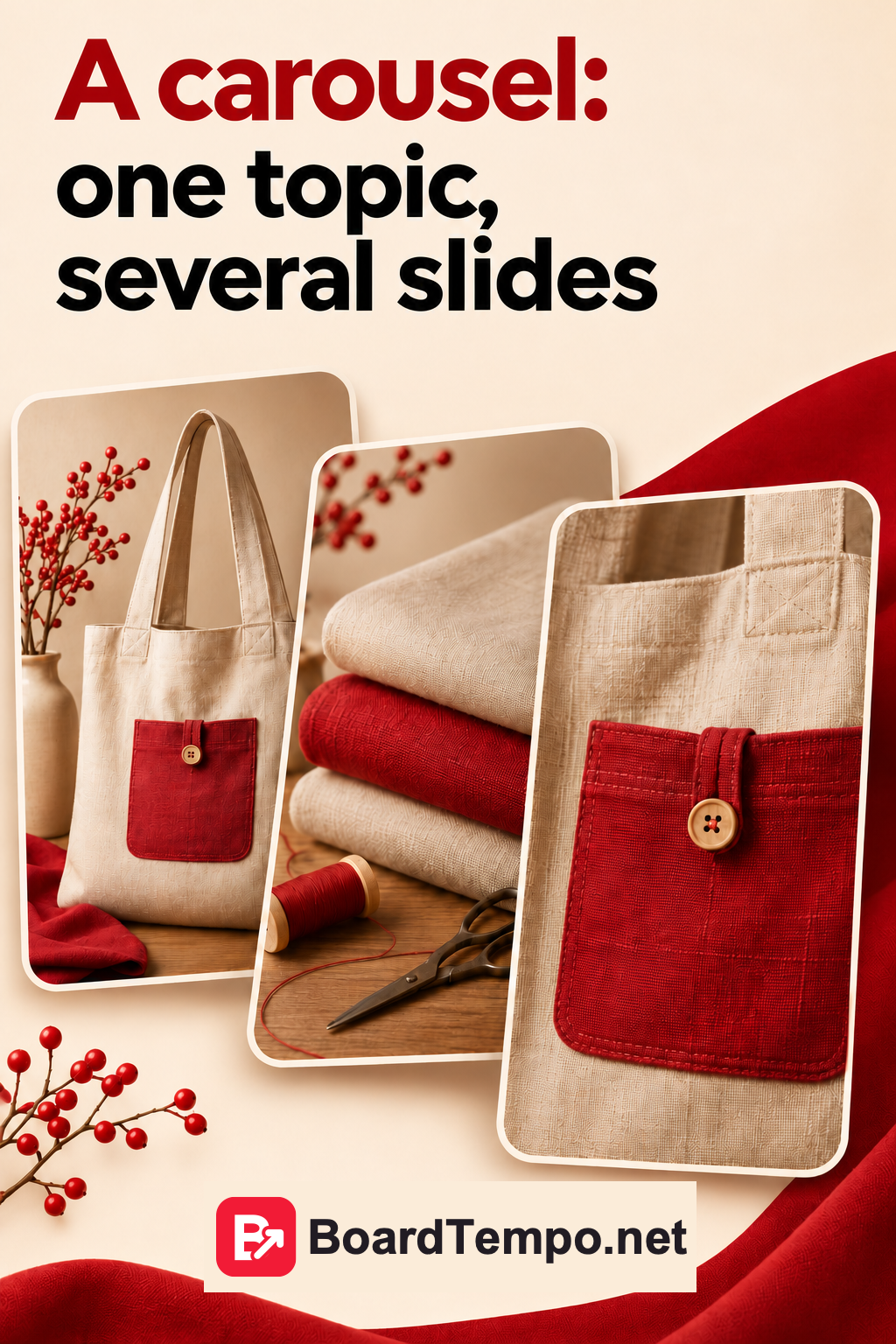
Imagine a tutorial for sewing a fabric bag. The first card shows the finished bag and introduces the lesson. The second explains suitable fabrics. The third shows one construction detail. The final card points to the full tutorial.
Each card should add something, rather than repeat the headline in different words. And don't hide the only useful tip on the last slide. Give readers something they can use along the way.
Don't promise a complete pattern if the link leads to a photograph. Don't assume an automatically imported post points to the right article either. Open the finished Pin and test the link.
If you can't use a carousel
Turn the slides into a short video and allow enough time to read each one. Or make separate, self-contained Pins: one about the fabric, one about the pocket and one showing the finished bag. Each should make sense without its neighbours.
We explore the second option in “One article, several Pins.” It's not a consolation prize for missing out on a button. It's simply another way to explain your work.
Start with three cards on one small topic. Check the format, readability and link in your own account. Build a larger workflow after that, not before.
One article, several Pins: give readers different reasons to visit
Sources
Pinterest: Create a Pin from an image or video

Let’s talk about it
What could help your project? Share your experience or ask a question.
The discussion will appear here after this article is posted in our Telegram channel and comments are enabled. You can visit the channel meanwhile. Comments are public; you are not automatically subscribed.
Telegram loads only when you click. Telegram may ask you to log in to comment. If the discussion is not available, use the channel link above.